
Gmail Attachment Filing
Label a client email To File, and every real attachment is read and named by AI, saved to Google Drive, logged in Google Sheets, and confirmed to the sender in one receipt.
- ORGANISATION
- Bookkeeping Document Intake
- ROLE
- AI Automation Specialist
- PLATFORM
- Make
STACK
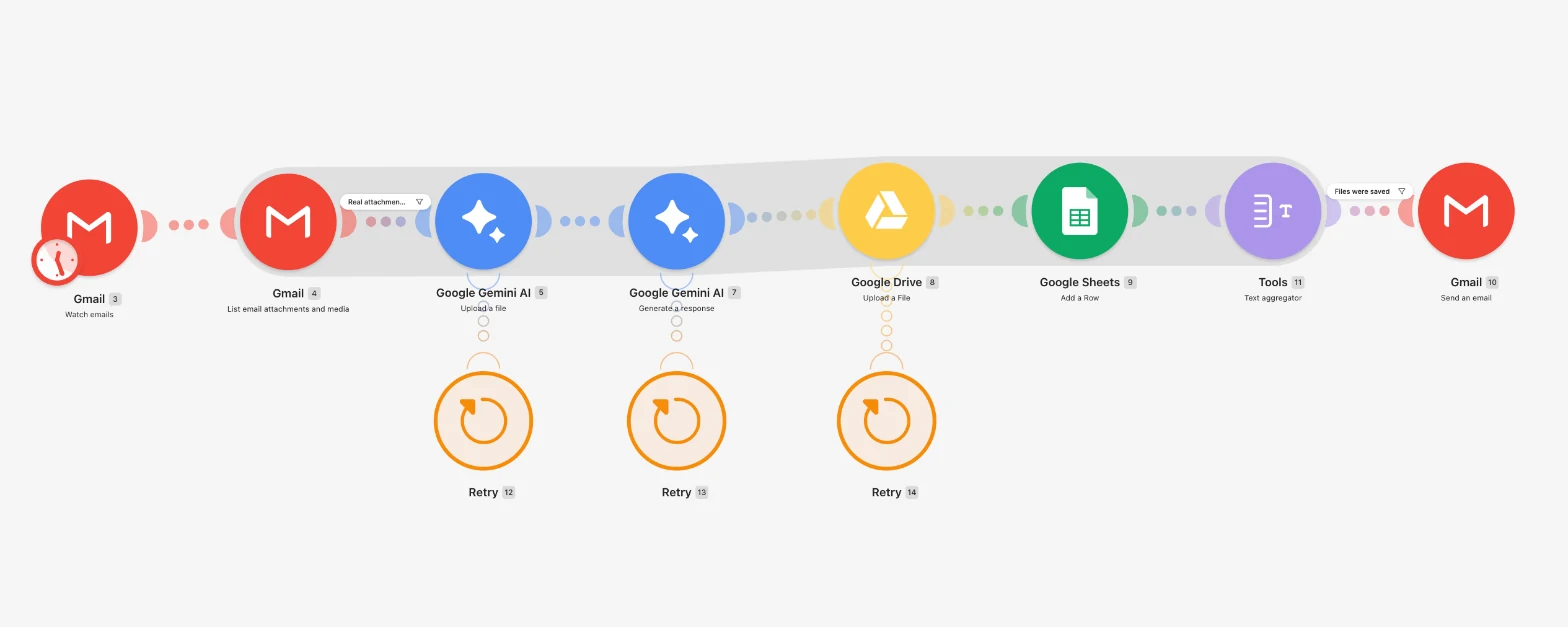
How this build works, in a short animated explainer.
THE WORKFLOW
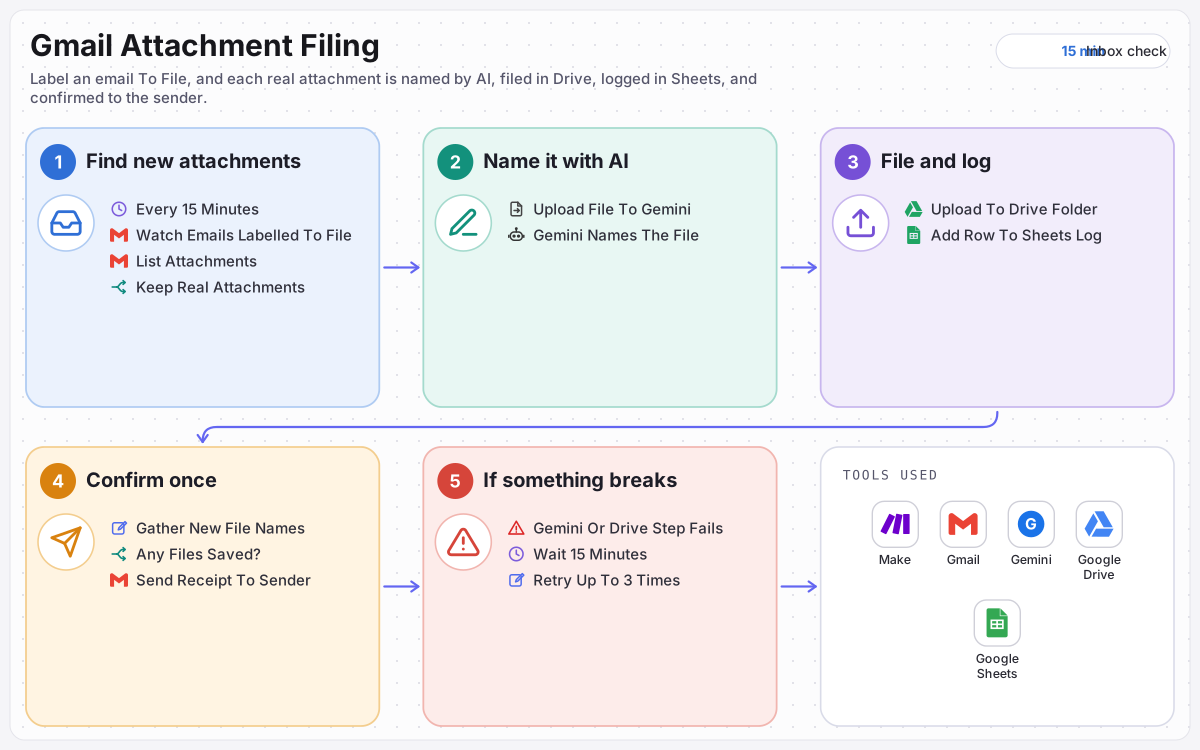
Every 15 minutes → emails labelled To File → keep real attachments → Gemini names each file → Drive upload → Sheets log → one receipt to the sender.
OUTCOME
Label it once. It is named, filed and logged.
Every file arrives under a name that says what it is, with a log row and a receipt to prove it.
15 min
Between inbox checks
Label a client email To File and within 15 minutes its attachments are named, saved to Google Drive and logged, with nobody downloading anything.
5
Details logged per file
Every file gets a log row with the date, its original name, its new name, the file type and a Drive link, so anyone can find what arrived and where it went.
1
Receipt per email
The sender gets one email listing every file saved under its new name, and only when at least one file was saved.
THE PROBLEM
Clients emailed receipts, statements and scans every day. Someone downloaded each attachment by hand, saved it under names like scan001.pdf, and nobody could say later what had arrived, from whom, or where it went.
WHAT I BUILT
Built a Make scenario that checks Gmail every 15 minutes for emails labelled To File. It keeps only real attachments, has Gemini read each file and give it a short, descriptive name, saves it to the client documents folder in Google Drive, logs it in Google Sheets, and sends the sender one receipt listing every file saved.
ACTIVE INTEGRATIONS
About this build
Built on Make for Fernhill Bookkeeping, a fictional sample client that receives receipts, statements and scans from its clients by email. The scenario itself is real and complete, and has filed real attachments end to end.
The problem
- Filing by hand. Every attachment was downloaded and saved one at a time.
- Names that say nothing. Files like scan001.pdf had to be opened to find out what they were.
- No record. Nobody could say what had arrived, from whom, or where it was saved.
- Silence for the client. Senders never knew whether their documents had been received.
What I built
- Find new attachments. Every 15 minutes, Gmail is checked for emails labelled To File that have attachments, up to 10 emails per run.
- Keep real attachments. Each attachment is listed, and only real files go on: no Office documents, no empty parts, and nothing 20 KB or smaller, such as signature logos.
- Name it with AI. Each file is uploaded to Gemini, which reads it and returns a short, descriptive name, keeping the original extension.
- File and log. The file is saved to the client documents folder in Google Drive, and a row is added to the Google Sheets log with the date, original name, new name, file type and link.
- Confirm once. The new names from that email are gathered into one list, and the sender gets a single receipt showing each file as its new name, sent as the old one.
Safeguards
- Original extension kept, so a PDF stays a PDF whatever Gemini calls it.
- Retries on failure: a failed Gemini or Drive step is retried up to 3 times, 15 minutes apart.
- One receipt, only when something was saved, never one per file and never an empty one.
- Inbox untouched: emails are not marked as read or moved.
Outcomes
- Every attachment is saved under a name that says what it is.
- A running log shows what arrived, when, and where it went.
- Clients get confirmation that their documents arrived.
Only real files, and a second try
Signature logos and empty parts are skipped, and a failed AI or Drive step tries again before it stops.
Real attachments only
Files of 20 KB or less, such as signature logos, are skipped, along with Office documents and empty parts.
Retries before it stops
If Gemini or Google Drive fails, that step is retried up to 3 times, 15 minutes apart.
No empty receipts
A receipt is sent only when at least one file from the email was saved.
KEEP READING
Other builds
What are you still
doing by hand?
Tell me the process that eats your week. I will tell you whether it is worth automating, and on which platform.
Ramon's assistant AI
Usually replies in seconds
What should come off your desk?
Hi, I'm Ramon's assistant. Ask me about automation, the platforms I build on, or how an engagement works.